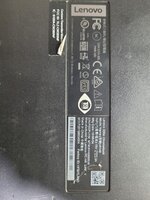
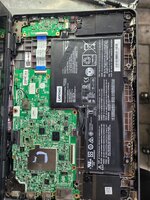
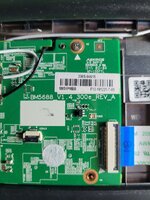
File Request bios file

Mikemkxv

Titanium
Registered

reputation_scoree

enterprise enrollment chromebook remove I need to bios file
 

Attachments

  • W25Q32DW@SOIC8-150_20251227_51210.BIN
    4 MB · Views: 0
  • photo_2025-12-29_00-01-53.jpg
    photo_2025-12-29_00-01-53.jpg
    263.4 KB · Views: 2
  • photo_2025-12-29_00-02-00.jpg
    photo_2025-12-29_00-02-00.jpg
    339.3 KB · Views: 1
  • photo_2025-12-29_00-01-55.jpg
    photo_2025-12-29_00-01-55.jpg
    199.8 KB · Views: 1

Vahab Hemmati

Support Team
Staff member
Admin
Registered

Reputation:

Performing a powerwash on your Chromebook effectively removes the Enterprise Enrollment and returns the device to its factory default settings. However, it's important to note that powerwashing erases all locally stored data on the device
 

Mikemkxv

Titanium
Registered

reputation_scoree

Performing a powerwash on your Chromebook effectively removes the Enterprise Enrollment and returns the device to its factory default settings. However, it's important to note that powerwashing erases all locally stored data on the device
I don't understand
 

Vahab Hemmati

Support Team
Staff member
Admin
Registered

Reputation:

1. Sign out of your Google Account: Click on the clock located in the bottom-right corner of the screen and select the account picture associated with your Google Account. Then, click on “Sign out” to log out of your account.

2. Access the powerwash option: After signing out, you’ll be directed to the sign-in screen. Press and hold the “Ctrl” + “Alt” + “Shift” + “R” keys simultaneously on your keyboard. This will bring up the powerwash prompt.

3. Confirm the powerwash: In the powerwash prompt, click on the “Powerwash” button to initiate the process. A confirmation pop-up window will appear, providing information about the data that will be deleted.

4. Proceed with the powerwash: Read the information in the pop-up window carefully, ensuring that you have backed up any important files. If you’re ready to proceed, click on the “Reset” button to initiate the powerwash process.

5. Follow the setup prompts: After the powerwash is initiated, your Chromebook will restart and begin the initial setup process. Follow the on-screen prompts to configure your language, network, and Google account details.

 
Who is viewing this thread?

There are currently 0 members watching this topic

Users who has read this topic
Top