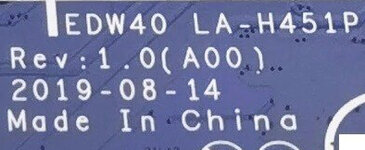
• If your Dell laptop, desktop or all-in-one has no display after BIOS update, the BIOS, EC, ME region or NVRAM may be corrupted.
• You can download a complete Dell BIOS dump + EC file from Dr-Bios and program it. Some cases require custom rebuild based on Service Tag, board revision or configuration.
• If the system is working normally, use the official Dell updater. If it is corrupted, password-locked, dead or not booting, direct BIOS programming may be required.
• Always backup the original BIOS chip before flashing. If the correct file is not available, submit a request and support can usually prepare it.
• No power is not always BIOS-related, but corrupted BIOS or EC firmware can block startup on some Dell boards.
• Check power rails first. If BIOS or EC corruption is suspected, flash a matching Dell BIOS dump + EC file.
• This can be caused by BIOS corruption, ME region issue, wrong dump, RAM initialization, EC mismatch or NVRAM conflict.
• Use a clean tested Dell BIOS dump + EC file for the exact model and board version. Advanced cases may need custom rebuild.
• Dell BIOS password cases may include hash codes and security errors such as 595B, D35B, 2A7B, 1D3B, 1F66, 6FF1, 1F5A, BF97, 8FC8, E7A8 or 0001.
• Many Dell security password solutions are not publicly available. If your code is different, support can check the case and prepare the correct file.
• Dell systems may show Service Tag, serial number, NVRAM, Computrace, Product Information or BIOS identity errors.
• Some files work directly, but Service Tag, NVRAM, Computrace or security cases may require cleaning, reset or custom rebuild.
This site uses cookies to help personalise content, tailor your experience and to keep you logged in if you register.
By continuing to use this site, you are consenting to our use of cookies.